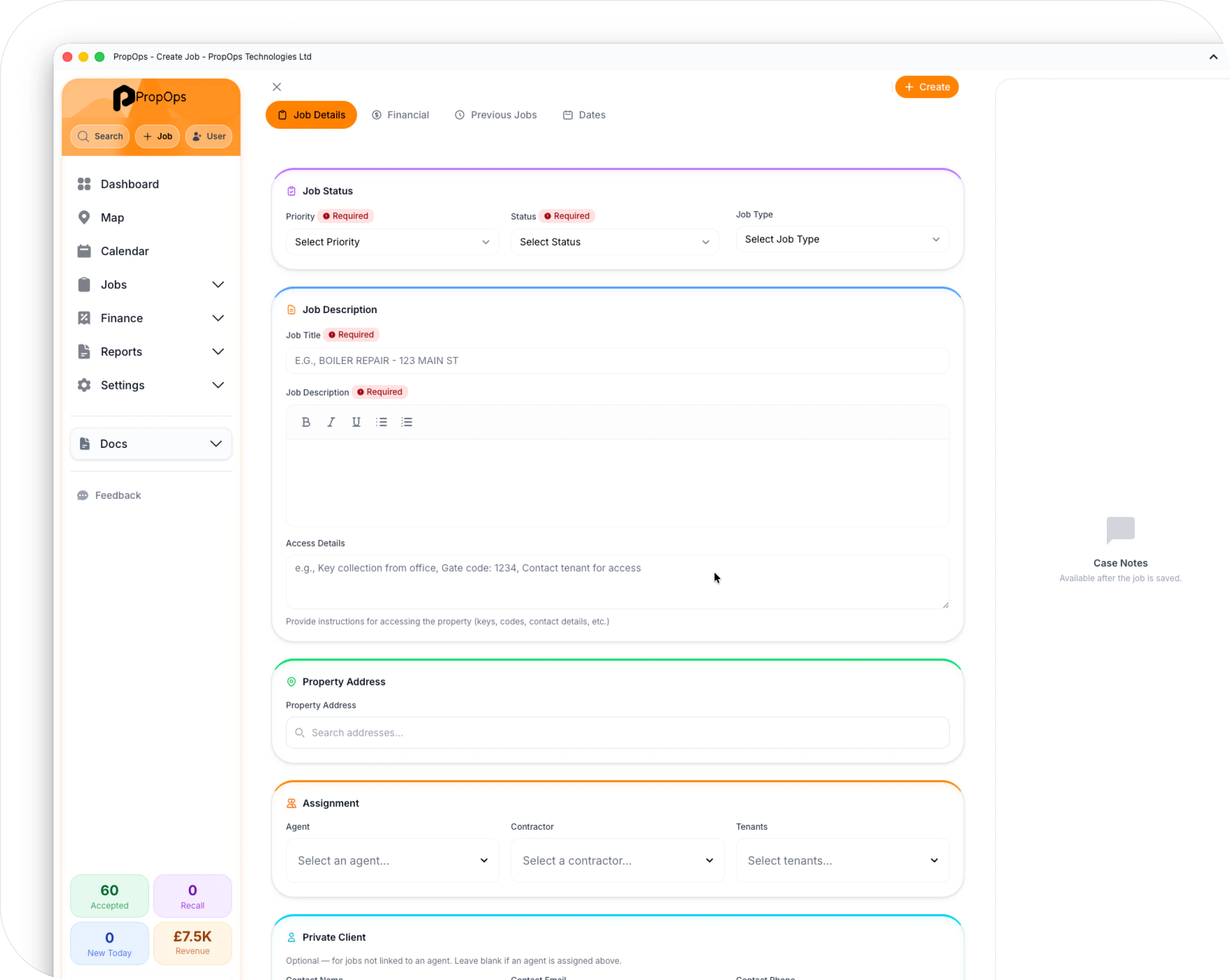
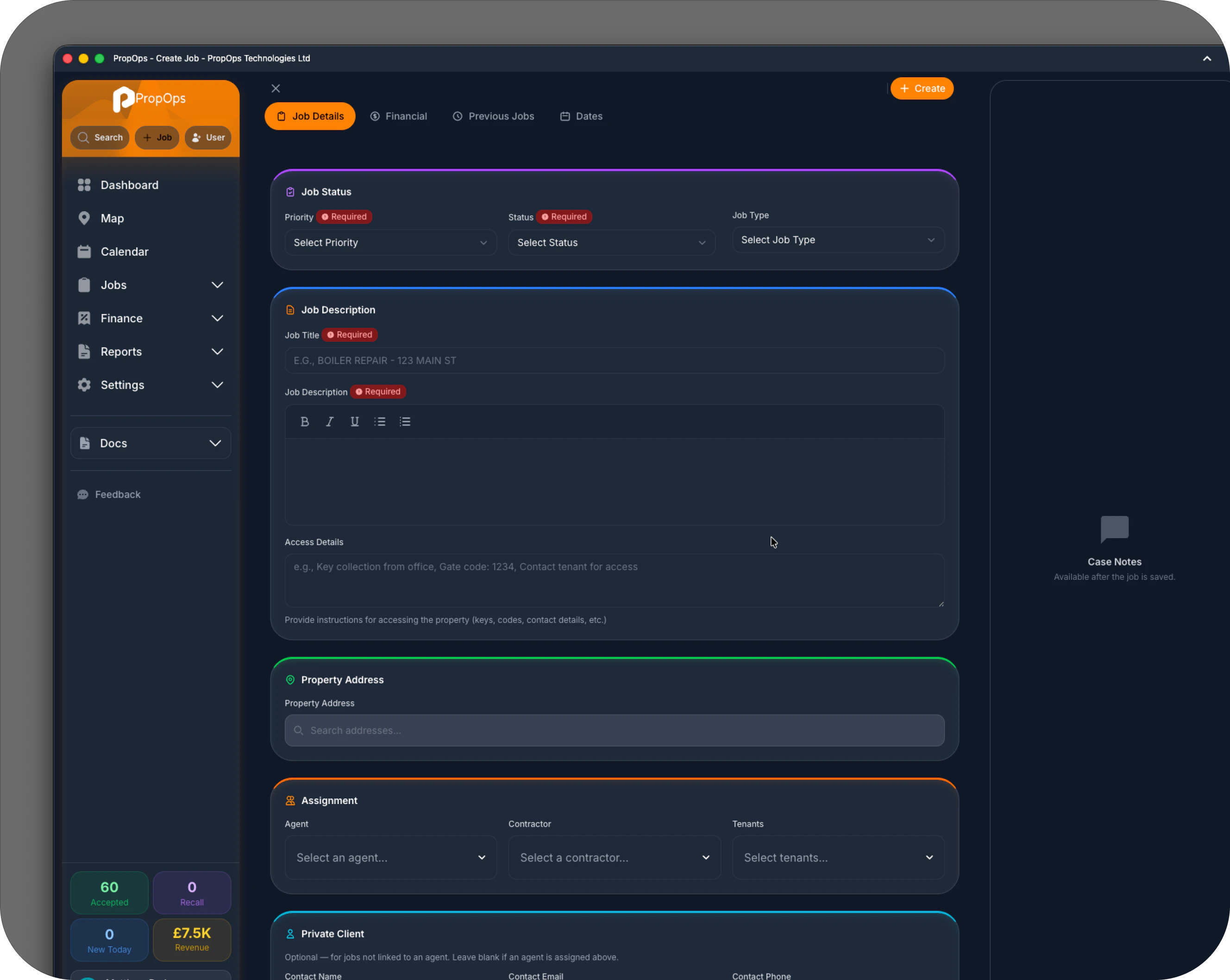
Set the , , and . Enter a clear — something like “SINK REPAIR” — and write a full description in the rich-text editor.
3
Set the property address
Addresses are created independently from jobs, if the address hasn’t been added to the system before you will be presented with a add new address form automatically
4
Link the tenant
Search for the tenant in the Tenants field and select them. If the tenant doesn’t exist yet, you can create a new tenant from within the job and assign it to the address so they are automatically selected on future jobs or previous jobs as the current tenants.
5
Save the job
Select Create. PropOps assigns a unique job reference and sends notifications to the relevant parties.
Open Contractors → Coverage Map from the sidebar. Enter the property postcode in the search bar. The map shows which contractors cover that area, with isochrone overlays showing realistic travel coverage.
2
Check their credentials
Select a contractor on the map to see their trades, certifications, and current workload. Make sure they hold valid certifications for the job type.
3
Assign them to the job
Go back to your job record and edit it. In the Contractor field, search for and select the contractor you chose. Save the job — the contractor receives a notification with the job details.
PropOps Web can suggest the best contractor automatically based on trade and location. Look for the suggestion in the contractor assignment field.
The SLA indicator on the job card shows how much time remains before the target deadline. If the job approaches its deadline, PropOps sends automated warnings. A missed deadline is recorded as an SLA breach in the audit log.
The contractor marks the job as complete and adds a completion note with any relevant details or photos.
2
Review the work
Open the job and review the case notes, photos, and completion details. If you’re satisfied, move the status to Closed.
3
Handle issues
If the work isn’t right, select Actions → Recall Job to reopen it. Enter the reason — the contractor is notified and the job appears in Jobs → Recalls.
Go to the Financial tab on the job. Enter the invoice number, agent price (ex. VAT), contractor total, and any budget figures. VAT is calculated automatically.
2
Record payments
As payments come in, mark each one in the Financial tab — client payment received, contractor payment sent, commissions paid. The payment status updates automatically.
3
Verify the job is settled
When all payments are recorded, the job shows Payment Complete. It’s now fully closed.